
Upgrading to a higher plan
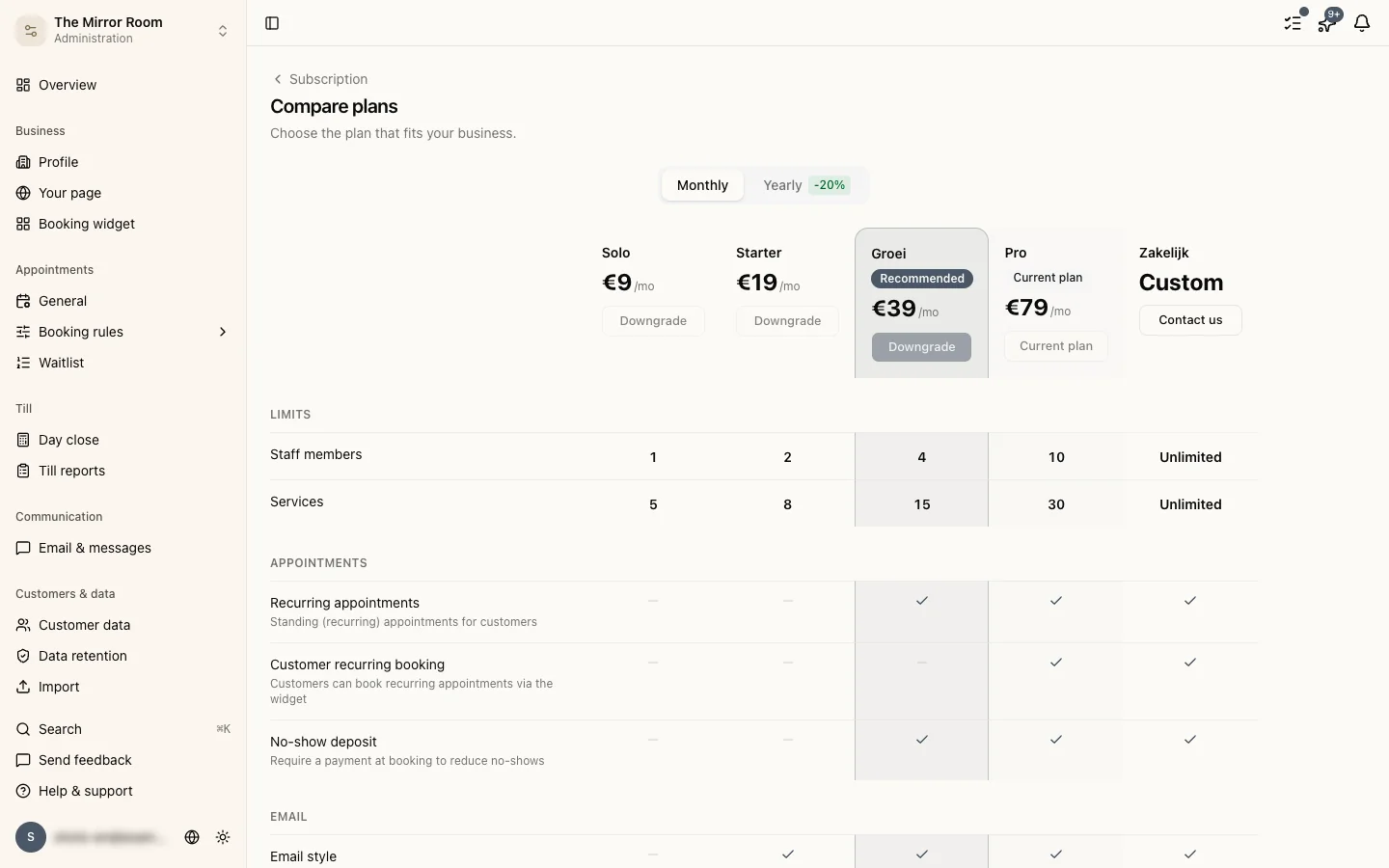
Go to Settings > Subscription, pick the plan you want and click Upgrade.
You are sent to Stripe to enter or confirm your payment details. The new plan is active as soon as you pay.
On an upgrade you pay the difference for the rest of the period you are in. Stripe sends you an invoice for it.
Downgrading to a lower plan
Go to Settings > Subscription, pick the lower plan and click Downgrade.
The downgrade takes effect at the end of the period you have paid for. Until then you keep your current plan.
What if I am over the limit after downgrading?
If the new plan allows fewer staff members or services than you have now, you cannot create new ones after the downgrade. The ones you already have stay active.
For example: you have 8 staff members and downgrade to a plan that allows 1. Those 7 extra people stay exactly as they are, but you cannot add anybody until you have removed enough to get back under the limit.
Yearly billing
Stippa also offers yearly billing at a discount. Switch to it under Settings > Subscription.
Finding your invoices
Every invoice is in the Stripe Customer Portal, which you reach through Settings > Subscription > View invoices.